Tampilkan postingan dengan label MP160. Tampilkan semua postingan

Reset Canon Pixma MP160, Mp180, MP460

Kamis, 02 Juni 2011

0 komentar
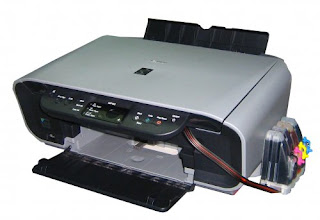
http://i.testfreaks.co.uk/images/products/600x400/104/canon-pixma-mp220.1096552.jpg

To reset the printer model you can use MPtool software, the reset methode can be found here: reset canon pixma mp160, mp170, mp180 and mp460 using mptool software. But before using MPTools software you must read this comment to reset our printer without error.

Reset Waste Ink Counter Canon Pixma MP210 and Canon Pixma MP220

1. Start with printer off
2. Press and hold resume Button (triangle in the circle) and click “Power” button. green led should be on
3. hold the Power button, release Resume Button.
4. Without releasing the Power Button, double click “Resume” button and then release Both Buttons.
5. Click “Resume” for four times then click “Power” button, to confirm the selected action (reset counter absorber).
6. Turn off the printer and turn on again

Reset Ink Level Canon Pixma MP460 (Manual Methode)

1. Disconnect the power cable
2. Hold down power button
3. Reconnect the power cable
4. With the power button still down, press twice the “Cancel/Stop” red button
5. Release the power button
6. The printer is now in factory mode…(wait about 30 seconds until it says “idle”)
7. Press the down arrow (next to the “OK” button) until it says “Shipping Mode 1”
8. Press the “OK” Button
9. Now with it displaying “Without Cleaning” press the power button
10. A test page should print
11. Now open cover
12. Disconnect the power again
13. Take both cartridges out like normal
14. Close cover
15. Reconnect power cable
16. Press power button
17. Replace cartridges

note: Other methode to reset ink level you can use MPtool software
Read More..

Reset Waste Ink Canon MP160 and MP145

Jumat, 14 Januari 2011

0 komentar
Canon MP160 , MP145

https://blogger.googleusercontent.com/img/b/R29vZ2xl/AVvXsEiyEWodNkj2iJ8YSItSFGkpDfSa3Ab813kWNU2Ca3mrhv0beJk8txJm2YYxWOwpl5UWNhqrqNOlk8wCGP5B-Jk-vCoXHOccuyhsXR1q4WhpuckWbH1olLpwh5mBfNl5AsuzBMa26HgQwbA/s320/mp145.jpg

1) With the printer powered off but connected to a power source, press the Power button while pressing and holding
the Stop/ Reset button.
2) When the Power is lit, press the Stop/Reset button two times while pressing and holding the Power button.
3) When releasing the Power button and the Stop / Reset button (regardless of order), the printer will move into a
service mode. (Waiting for menu selection)
4) When the on/off lights in green, press the Stop/Reset button the specified number of time(s) according to the
function listed in the table below.(Each time the Stop/Reset button is pressed, the LED lights alternately in
orange and green, starting with orange.)note: press 4 times for waste ink counter reset.

The number of the Reset
button pressing
LED Function Remarks
0 time Green Power off

1 time Orange Service pattern print
2 times Green EEPROM print
3 times Orange EEPROM reset
4 times Green Waste ink counter reset

5) Unplug cable power. (for MP145 / MP150)
6) Turn Off Power. (for MP160)

Error Code :
E2-2 = No paper (ASF)
E3-3 = Paper jam
E4 = No ink
E5-5 = The ink cartridges are not installed or a non-supported ink cartridge is installed, or the ink cartridges are not installed properly
E8 = Waste ink absorber full, or platen waste ink absorber full
E9 = The connected digital camera / video camera does not support Camera Direct Printing
E14 = The Ink cartridges whose destination are wrong
E15 = Ink cartridge is not installed E16 - Ink remaining is unknown
E16 -E19 = Failed to scan head alignment sheet
E22 = Carriage error
E23 = Paper feed error
E24 = Purge unit error
E25 = ASF(cam) sensor error
E26 = Internal temperature rise error
E27 = Waste ink absorber full or platen waste ink absorber full
E28 = Ink cartridge temperature rise error -
E29 = EEPROM error
E33 = Paper feed position error
E35 15 = USB Host VBUD overcurrent error - USB
E37 17 = Abnormal motor driver error
E40 20 = Other hardware error
E42 22 = Scanner error

MERESET WASTE INK COUNTER PADA CANON MP160 DAN MP145
1. Matikan printer (kabel power masih tercolok), tekan dan tahan tombol STOP/RESET kemudian tekan tombol ON/OFF dan lepas STOP/RESET
2. Tahan tombol ON/OFF, tekan tombol STOP/RESET 2x
3. Lepaskan kedua tombol dan printer akan masuk ke SERVICE MODE (muncul angka NOL)
4. Printer akan charging
5. Setelah printer selesai charging, tekan tombol STOP/RESET 4x.
6. Setiap kali tombol STOP/RESET ditekan, lampu ON/OFF akan berubah warna hijau dan oranye.
7. Tekan tombol ON/OFF 1X, angka berubah ke SATU (1)
8. Matikan printer dan cabut kabel POWER.
9. Hidupkan kembali printer


Kode Error Canon MP160 dan MP145
E2-2 = No paper (ASF)
E3-3 = Paper jam
E4 = No ink
E5-5 = The ink cartridges are not installed or a non-supported ink cartridge is installed, or the ink cartridges are not installed properly
E8 = Waste ink absorber full, or platen waste ink absorber full
E9 = The connected digital camera / video camera does not support Camera Direct Printing
E14 = The Ink cartridges whose destination are wrong
E15 = Ink cartridge is not installed E16 - Ink remaining is unknown
E16 -E19 = Failed to scan head alignment sheet
E22 = Carriage error
E23 = Paper feed error
E24 = Purge unit error
E25 = ASF(cam) sensor error
E26 = Internal temperature rise error
E27 = Waste ink absorber full or platen waste ink absorber full
E28 = Ink cartridge temperature rise error -
E29 = EEPROM error
E33 = Paper feed position error
E35 15 = USB Host VBUD overcurrent error - USB
E37 17 = Abnormal motor driver error
E40 20 = Other hardware error
E42 22 = Scanner error


If you find this article useful, please consider making a donation to the author. Thank you!


Thanks to John Henry for Donation
Read More..

Copyright © 2010 Fix Your Printer By Self | Powered By Blogger